
The HCISD Dashboard: Role-Based Workflows for the Business Office
TL;DR
- We unveiled the HCISD Dashboard to the board. Watch the full demo Here or above!
- I built the HCISD Dashboard, a district-wide workflow platform
- Role-based and permission-based. Secretaries, Custodians, Teachers, Principals, Directors, Counselors, Asst. Superintendents and other roles each see the forms and actions that apply to them
- Harley is built into the workflow, not used as a generic chatbot here. It extracts invoice fields from uploaded PDFs and suggests matches to open receiving reports. Buyers always confirm before anything is connected
- Built internally around how HCISD actually works. Not a one-size-fits-all outside system we have to force our processes into
We recently walked the HCISD board through the HCISD Dashboard. The goal of that demo was straightforward: show what the dashboard is, how staff access it, and how it can streamline forms, workflows, and approvals across the district.
For the first walkthrough, we focused on the Business Office and the forms we have been building to support their day-to-day processes. This post follows that same story, with a bit more technical context for anyone curious about how it works under the hood.
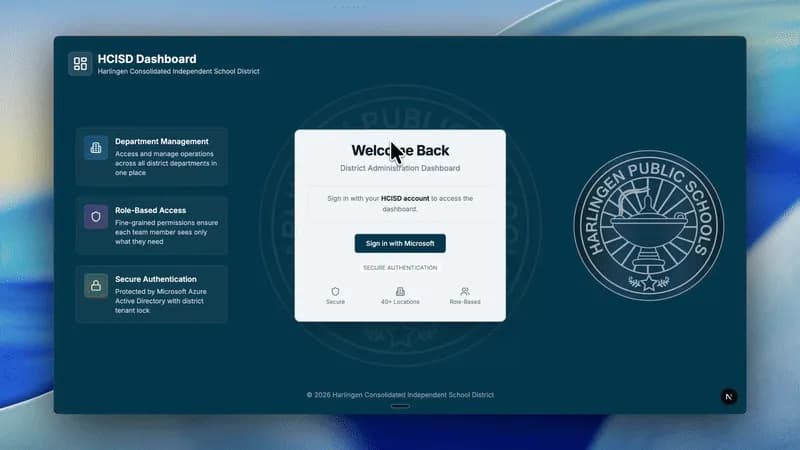
One Link, One Sign-In
To access the dashboard, users sign in with their district account. One link. One sign-in. The same Microsoft OAuth flow staff are already used to.
Under the hood, the dashboard is a Next.js 16 app with React 19, backed by Firebase (Authentication, Firestore, Cloud Functions, and Storage). Permissions are resolved server-side on every write. The UI can look friendly, but the backend fails closed if you do not have access.
Role-Based by Design
The dashboard is role-based and permission-based. In the board demo, we viewed it from the perspective of a Budget Secretary. That is one role among many the system is designed to support: Custodians, Teachers, LMSs, Assistant Principals, Principals, Buyers, Directors, Assistant Superintendents, and other district-wide staff.
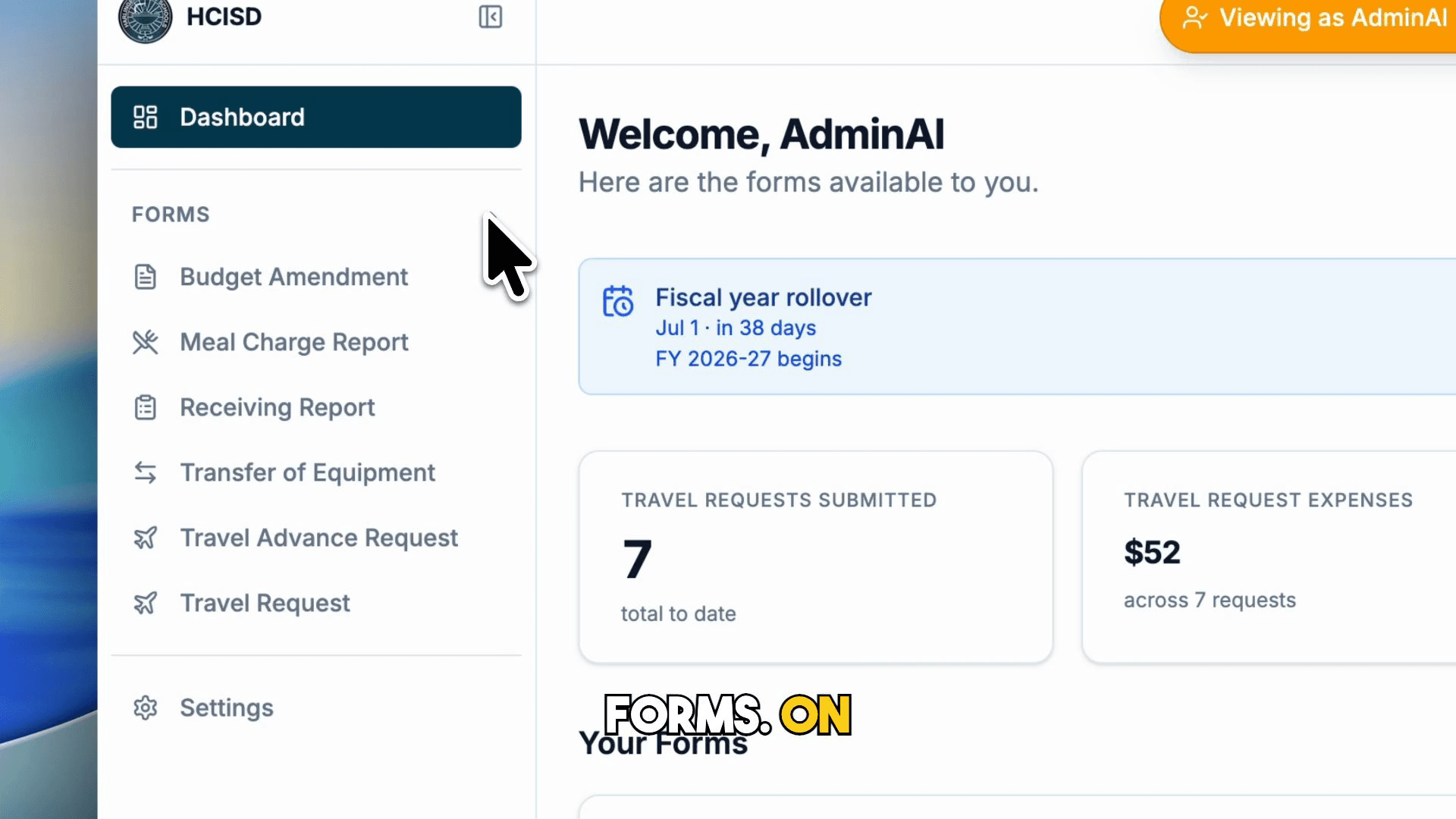
Each role gets access to the forms and actions that apply to them. A Budget Secretary sees six Business Office forms in the sidebar. A Buyer Admin sees a completely different layout: receiving report queues, the Invoice Inbox, Departments, Role Manager, Announcements, Workflows, and Approvers.
Same platform. Different surface area based on who you are and what you are allowed to do.
Business Office Forms (Budget Secretary View)
For Budget Secretaries, the dashboard currently includes six available forms:
- Budget Amendment
- Meal Charge Report
- Receiving Report
- Transfer of Equipment
- Travel Advance Request
- Travel Request
Navigate between them by clicking each form name on the left. As with any evolving system, these forms will keep improving based on user feedback, workflow needs, and district priorities.
For the board demo, we went deep on two: Receiving Report and Travel Advance Request.
Receiving Report: Budget Secretary Flow
On the left, Budget Secretaries can organize work across tabs:
- Drafts
- Submitted
- Action Required
- Completed
- Deleted
Within each tab, they can also filter by items they created themselves, items their team is working on, or items submitted on their behalf.
Step 1: Report Information
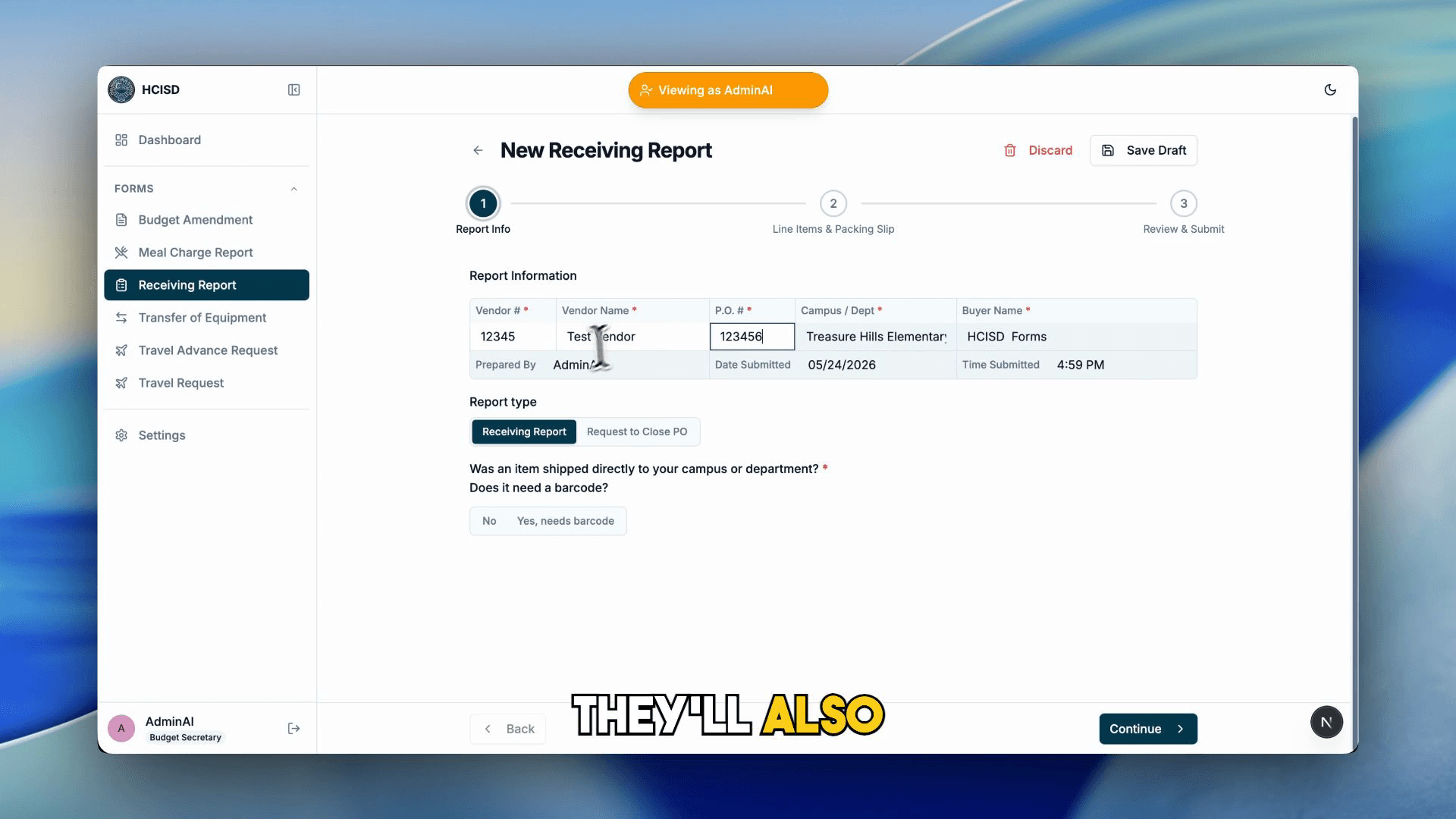
Click New Receiving Report and start with Report Information: vendor number, vendor name, and P.O. number.
Select the Report Type:
- Standard Receiving Report
- Request to Close a P.O.
If they request to close a P.O., they can choose whether they are closing the entire P.O. or specific line items.
The form also captures whether the item was shipped directly to the campus or department and whether it needs a barcode. If a barcode is needed, they describe the item and that information routes to Fixed Assets or Central Receiving for scanning and processing.
Step 2: P.O. Line Items
When they click continue, the system saves the draft, stores their changes, and moves them to P.O. Line Items.
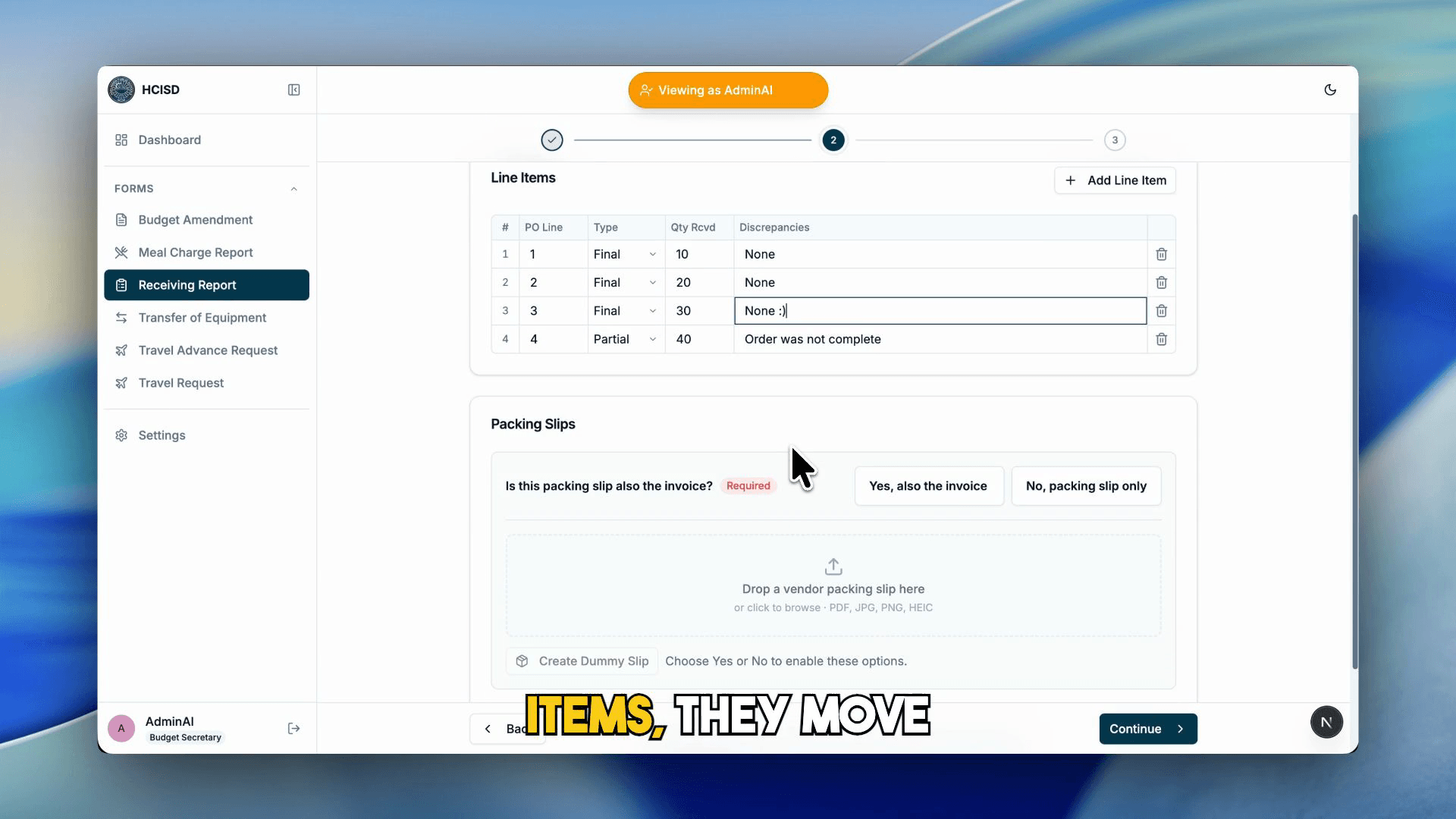
For each line they can:
- Enter the line item
- Select partial or final receipt
- Input quantity received
- Note discrepancies (required for partial receipts)
They can keep adding line items until the report matches what was actually received, or delete line items if needed.
In the demo we walked through four line items, with the last marked as partial and a required discrepancy note.
Step 3: Packing Slip
Next is the Packing Slip section. Upload a packing slip and indicate whether the packing slip is also the invoice: Yes, also the invoice or No, packing slip only.
If the vendor did not provide a packing slip, they can create a dummy packing slip to keep the report moving with proper documentation.
Step 4: Review and Submit
The Review section shows report information, line items, and packing slips before submission.
Several fields auto-fill based on the signed-in user: campus or department, who prepared the report, and other role/location context the system already knows.
Once everything looks correct, they submit. The report goes to the buyer responsible for that location.
Activity Tracker
After submission, they can still track where the report is in the process. Open a submitted Receiving Report and scroll to Activity. Every action is recorded: Budget Secretary steps, Buyer steps, and eventually Accounting.
That audit trail answers three questions everyone cares about: what happened, when it happened, and where the report stands now.

Buyer Admin: A Different View of the Same Process
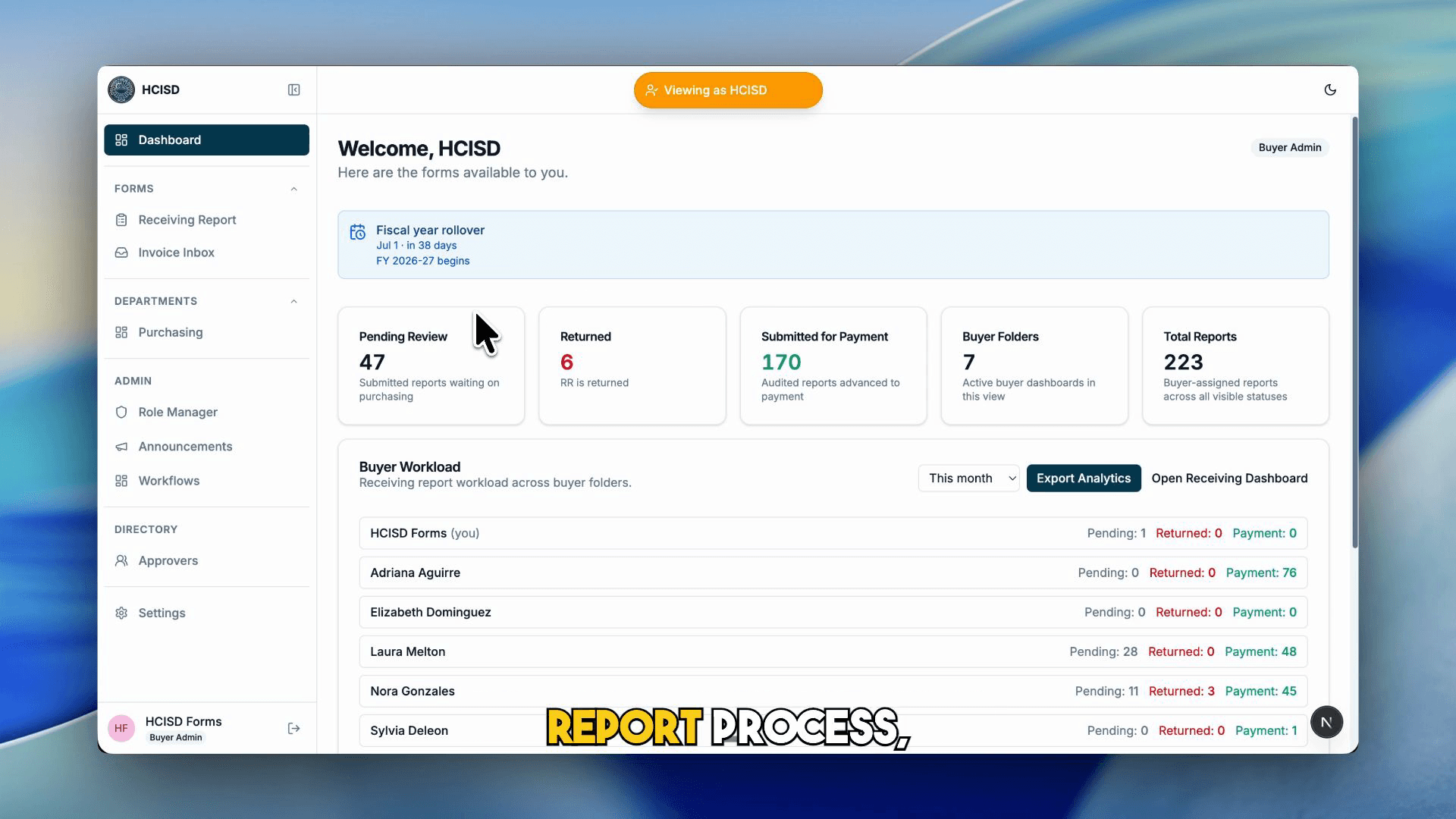
The Buyer Admin dashboard looks different because permissions are different.
Buyer Admins get a higher-level view:
- Reports pending review
- Reports returned for correction
- Reports submitted to accounting for payment
- Current buyer folders
- Total report counts across the system
They can still create a receiving report if needed, but they also have buyer-specific actions: reassign the buyer, change who the report is on behalf of, update campus or department, review line items, view packing slips, and manage invoices connected to the report.
Invoice Matching: Why One P.O. Does Not Always Equal One Invoice
One of the hardest parts of this workflow is invoice matching.
A purchase order can have multiple line items. A single line item can connect to multiple invoices. We did not want to build something that assumes one P.O. line always equals one invoice, because that is not how the real process works.
That is where the Invoice Inbox comes in.
Invoice Inbox and Harley
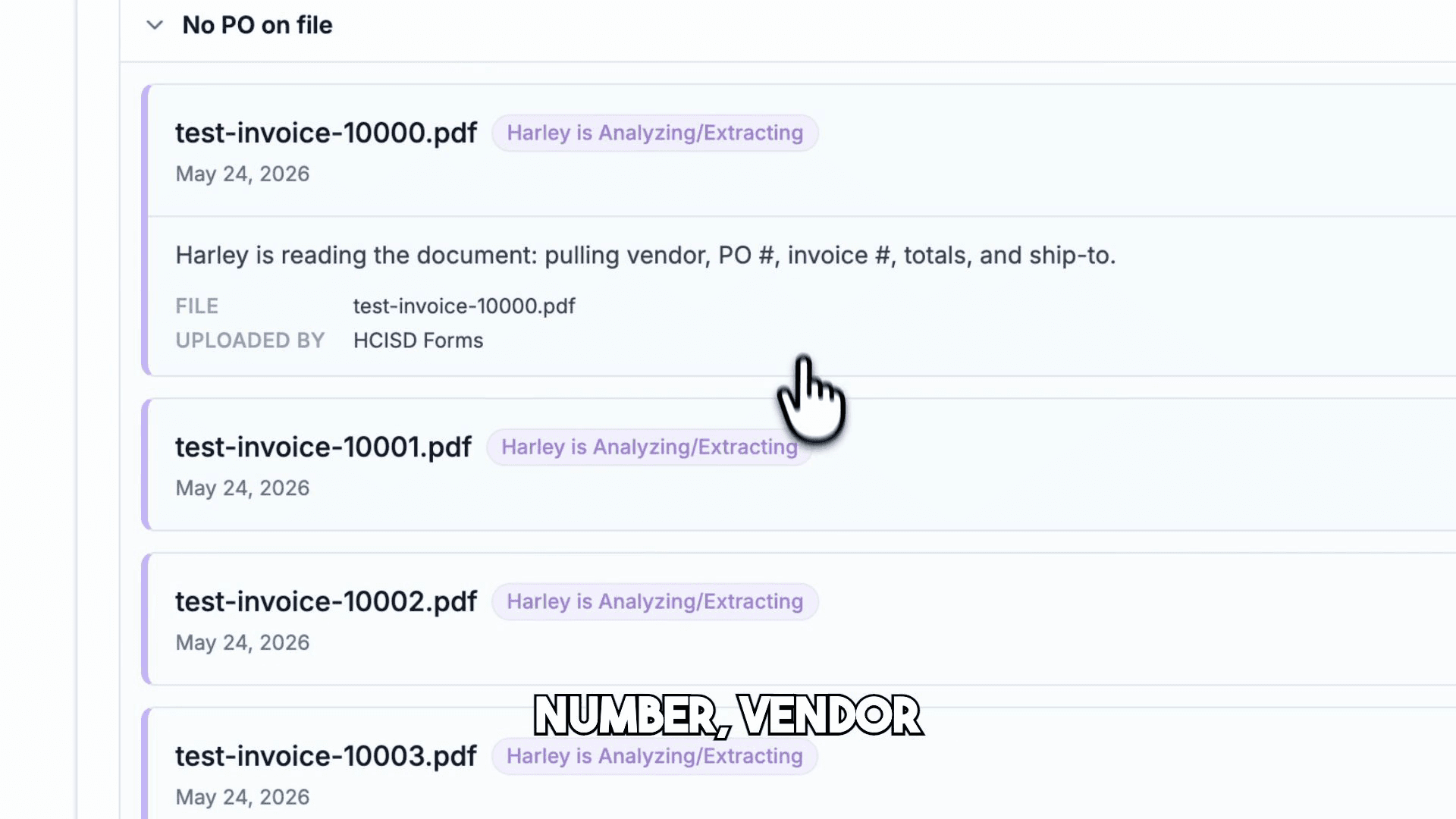
Buyers upload invoice PDFs from vendors. Once uploaded, invoices move into Needs Receiving Report while the system processes them.
Here is where Harley shows up differently from the public chatbot on hcisd.org. In the dashboard, Harley is built directly into the workflow:
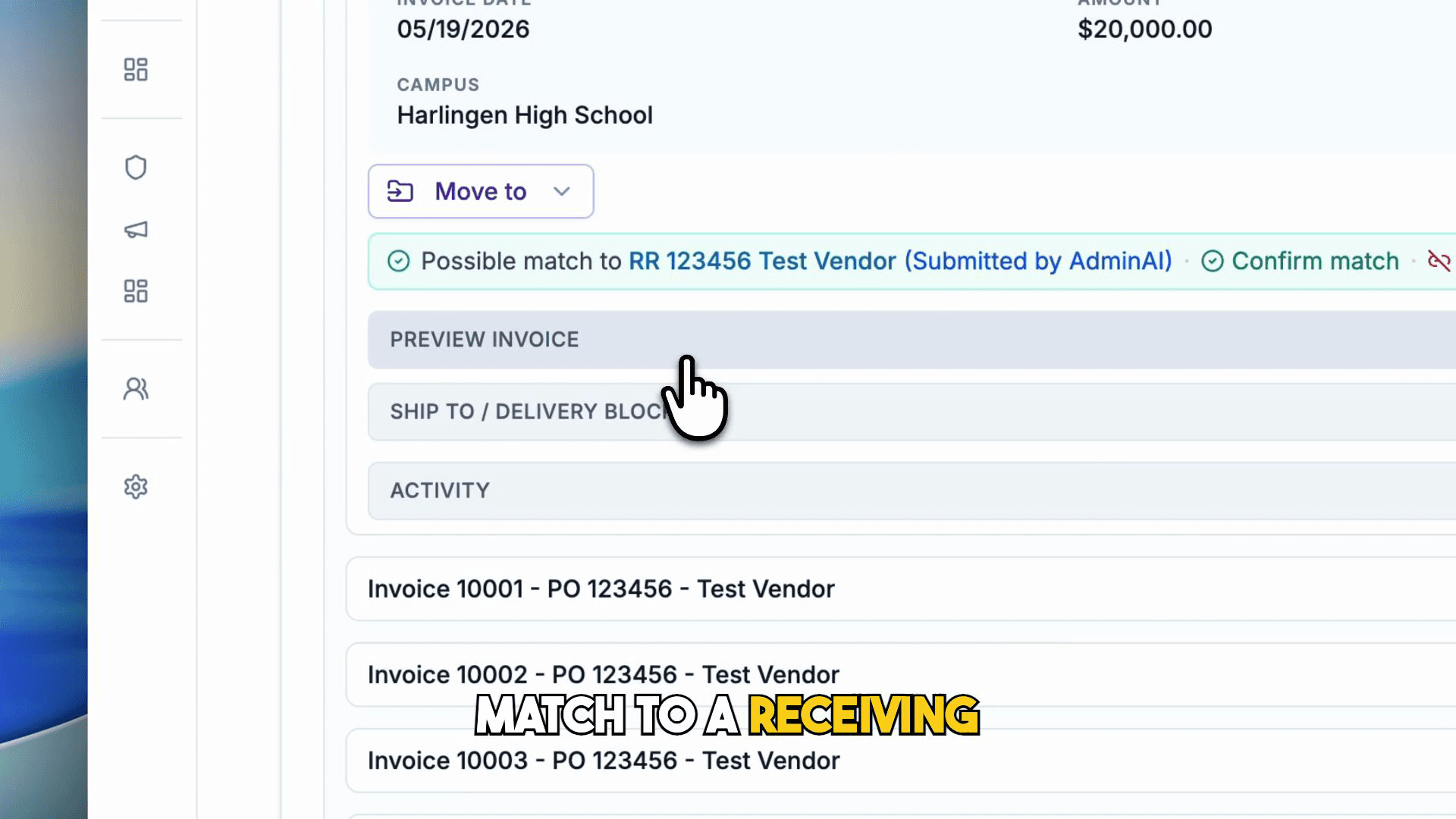
- Extracts P.O. number, vendor name, invoice number, invoice date, invoice amount, invoice type, and campus or department from each document
- Suggests a possible match to an open receiving report
- Organizes documents so buyers spend less time on manual entry
When a PDF lands in storage, a Cloud Function runs Gemini extraction (via Vertex AI), writes structured metadata back to Firestore, and looks up candidate receiving reports by normalized P.O. number.
The buyer can group or filter invoices by receiving report, invoice number, uploaded by, or P.O. number. Open an invoice to preview the document and review what Harley extracted.
From there they can:
- Confirm the match
- Mark it as not a match
- Move it to review if more research is needed
The system speeds things up. The final decision stays with the user.
Partial Payments and Retractions
Real scenarios need flexibility. In the demo we matched multiple invoices to the same receiving report.
Buyers assign invoice numbers and amounts to the correct line items. Some line items may be final and ready for accounting. Others may be partial: an invoice for $20,000 when only $10,000 of the order was received means submitting $10,000 for payment and leaving the rest open.
The system tracks what has been paid and what remains.
Once line items and invoice amounts are reviewed, the buyer submits to accounting. The dashboard creates a clear payment submission, keeping invoices, packing slips, and the receiving report connected in one place.
If something was submitted too early or needs correction, Buyer Admins can retract a submission. The Invoice Inbox also surfaces partial invoices separately so buyers can see original amount, amount already submitted, and remaining balance.
Travel Advance Request: Same Shell, Different Workflow
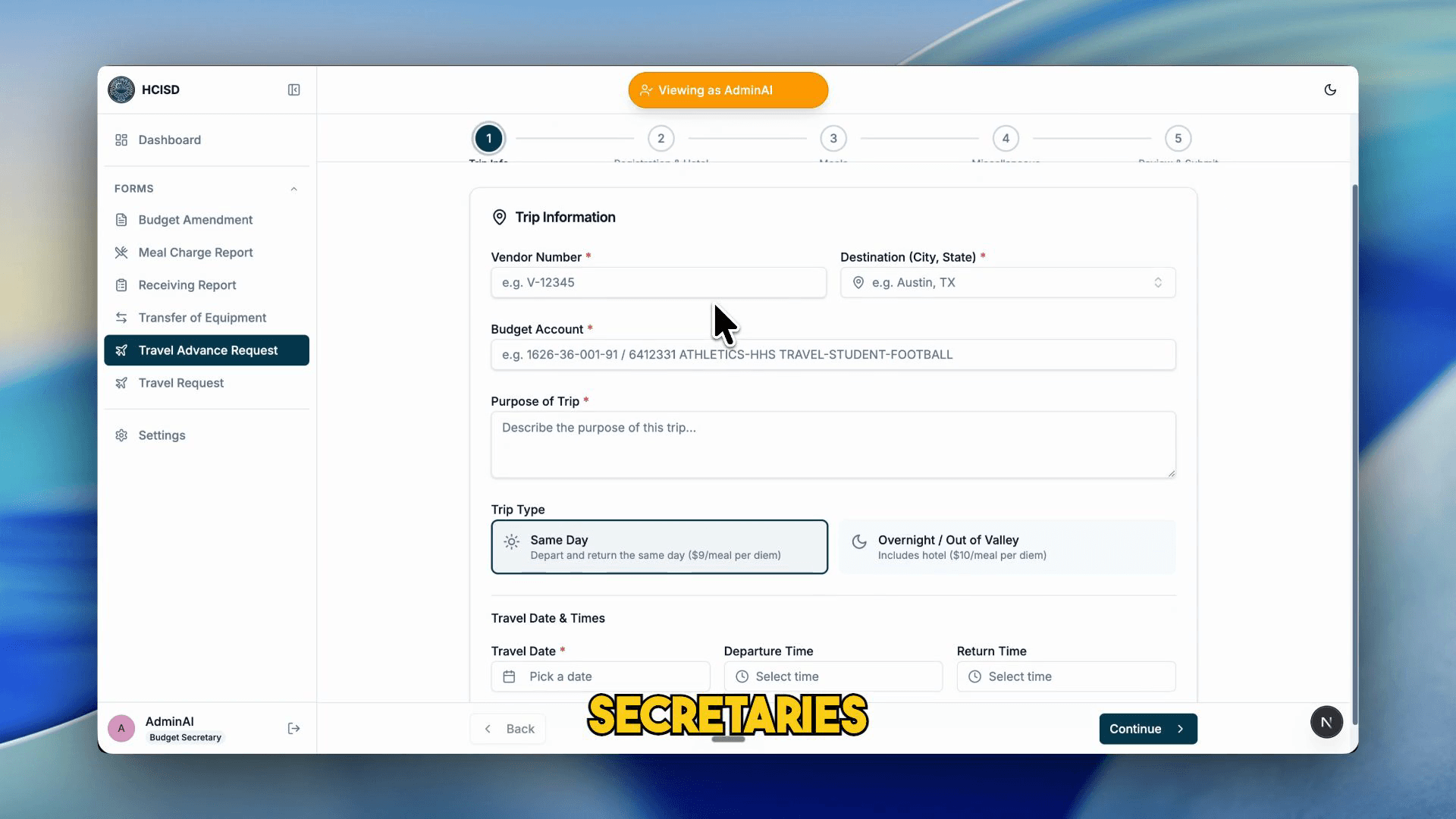
We ran out of time in the board demo to go through Travel Advance in the same detail, but the important design point is intentional: same dashboard style and structure.
Budget Secretaries use the same familiar layout: new request, drafts, submitted, action required, completed. The workflow itself is different because the form serves a different purpose.
In simple terms:
- Budget Secretary starts the request with travel information, estimated costs (meals, registration, hotel), and attachments
- Submitted request goes to the Department Chair for approval
- Travel Advance Settler reviews and issues the advance
- After the trip, the request returns to the Budget Secretary to upload receipts, invoices, and supporting documents
- Travel Advance Settler reviews one final time and finalizes
Throughout the process, the dashboard tracks status, keeps documentation connected, and shows where the request stands. Same activity and audit patterns as receiving reports.
Not Just Forms: A Scalable Workflow System
The main takeaway from the board demo is that this dashboard is not just a set of forms. It is a scalable, dynamic workflow system that can keep growing with district needs.
We can:
- Build different forms
- Customize approval paths
- Assign access by role
- Keep everything connected inside one consistent experience
What makes this especially valuable is that the data, workflows, and infrastructure are built and managed internally. This is not a one-size-fits-all outside system we have to force HCISD processes into. We are building around the way the district actually works.
Because it operates in our environment, we can keep the process secure, controlled, and aligned to district needs. Harley and AI-supported features are embedded in specific workflows to reduce manual work and organize information without replacing human decision-making.
And from an operational standpoint, the cost is extremely low compared to the value: time saved, visibility gained, audit trails, workflow consistency, and the ability to scale across departments.
How This Connects to Harley
If you read my Harley public launch post, you know Harley as the district AI chatbot on 30+ websites. That Harley answers questions for students, parents, and the community.
Inside the dashboard, Harley is the same AI infrastructure applied to operational work: read a vendor PDF, extract structured fields, suggest a receiving report match, let a buyer verify. Different surface, same principle of making district information usable without guessing.
Public Harley helps people find answers. Dashboard Harley helps staff move work forward.
What's Next
The Business Office workflows are the most mature part of the dashboard today, but the architecture is department-agnostic. Library & Innovation already has highlights workflows in the same app shell. More roles and forms will follow the same patterns: drafts, submissions, action required, activity tracking, and role-scoped sidebars.
Every new form inherits the consistent UX the board saw in the demo. Every approval path is configurable. Every action stays on the audit trail.
That is the bet: one dashboard experience that scales with HCISD instead of fragmenting into another tool every time a department needs a new process.
Connect
Questions about building workflow systems for school districts? Want to talk about invoice matching, role-based portals, or embedding AI in operational tools?
- Work Email: andres.gonzales@hcisd.org
- Personal Email: andrisgonzalis@gmail.com
- GitHub: @andres-ai-dev
Always happy to chat about AI, education technology, and making district operations easier to track.